sUAS OPS is built for drone operators and field teams that need to capture sortie details while operating away from a desk. A sortie record keeps mission or operation data, crew assignments, aircraft information, battery usage, checklist progress, notes, images, attachments, logbook entries, and report exports together.
The app is designed around live sortie capture. Start with the mission and sortie basics, record each flight as batteries are installed and removed, add quick notes when useful, then export the sortie summary, flight logbook, ORM support, or CAP-specific reports for review and final submission.
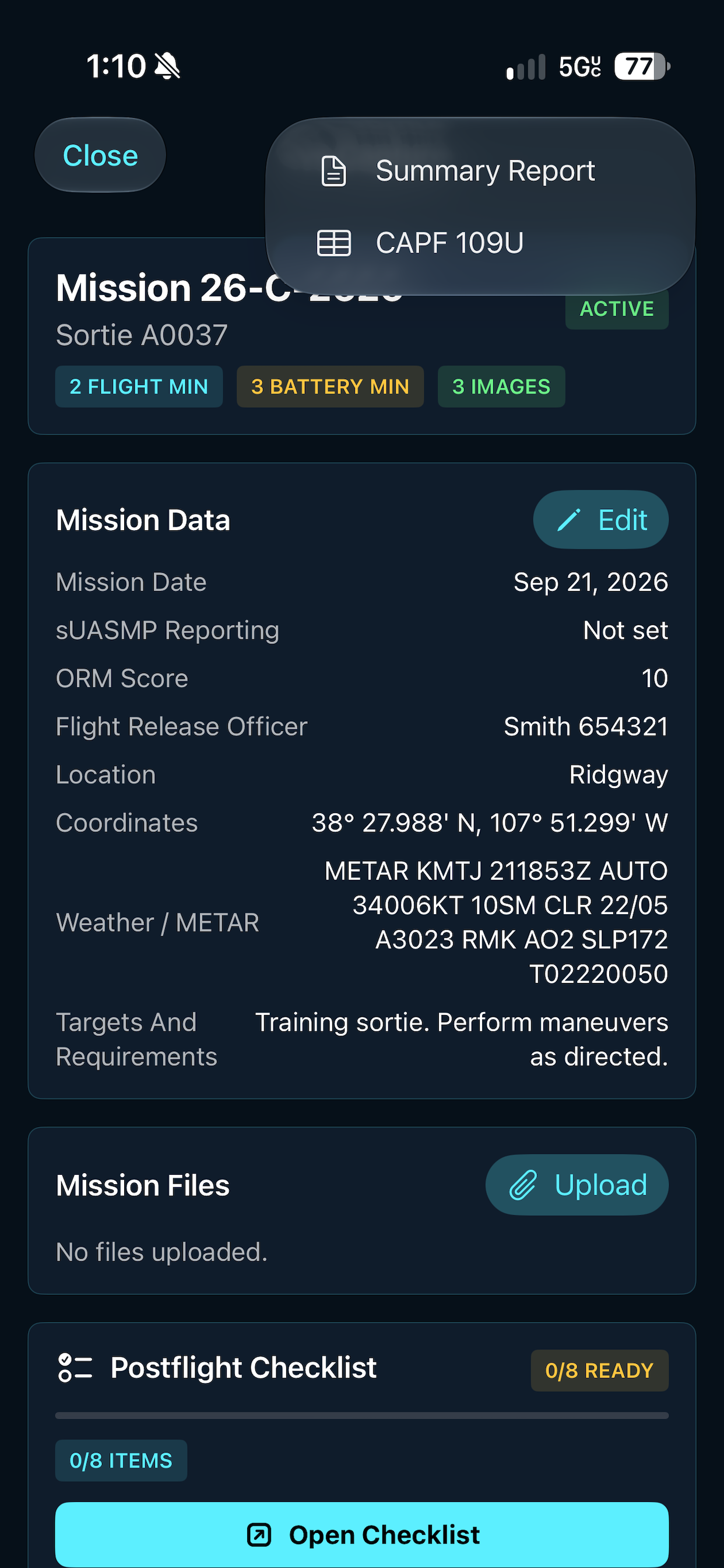
Live Capture: Mission details, status chips, files, and checklist entry points stay on the same operating screen.Reports: Use the share menu to create a Summary Report. CAPF 109U export appears when the Civil Air Patrol profile is selected.
Operation Profiles
The home screen includes an Operation Profile selector. The selected profile changes labels and workflow options so sUAS OPS can support general drone operations, public safety teams, and Civil Air Patrol missions without crowding every screen with every field.
General: Open drone operations with standard sortie capture, checklists, logbook, resources, ORM scoring, and summary reports.
Public Safety: Agency or team operations with non-CAP labels such as reporting contact, authorizing official, operation number, and approving official.
Civil Air Patrol: Enables CAP reporting fields, CAP resources, CAPF 109U export, CAP Microsoft Form assistance, and CAPF 704R-oriented ORM export.
Dashboard: Use the home tiles for New Sorties, Flight Log, Resources, and ORM.
Sortie Setup
Create or open a sortie before field operations begin. Complete as much mission information as practical before launching so the live capture screen can focus on flight events instead of administrative entry.
Recommended Fields
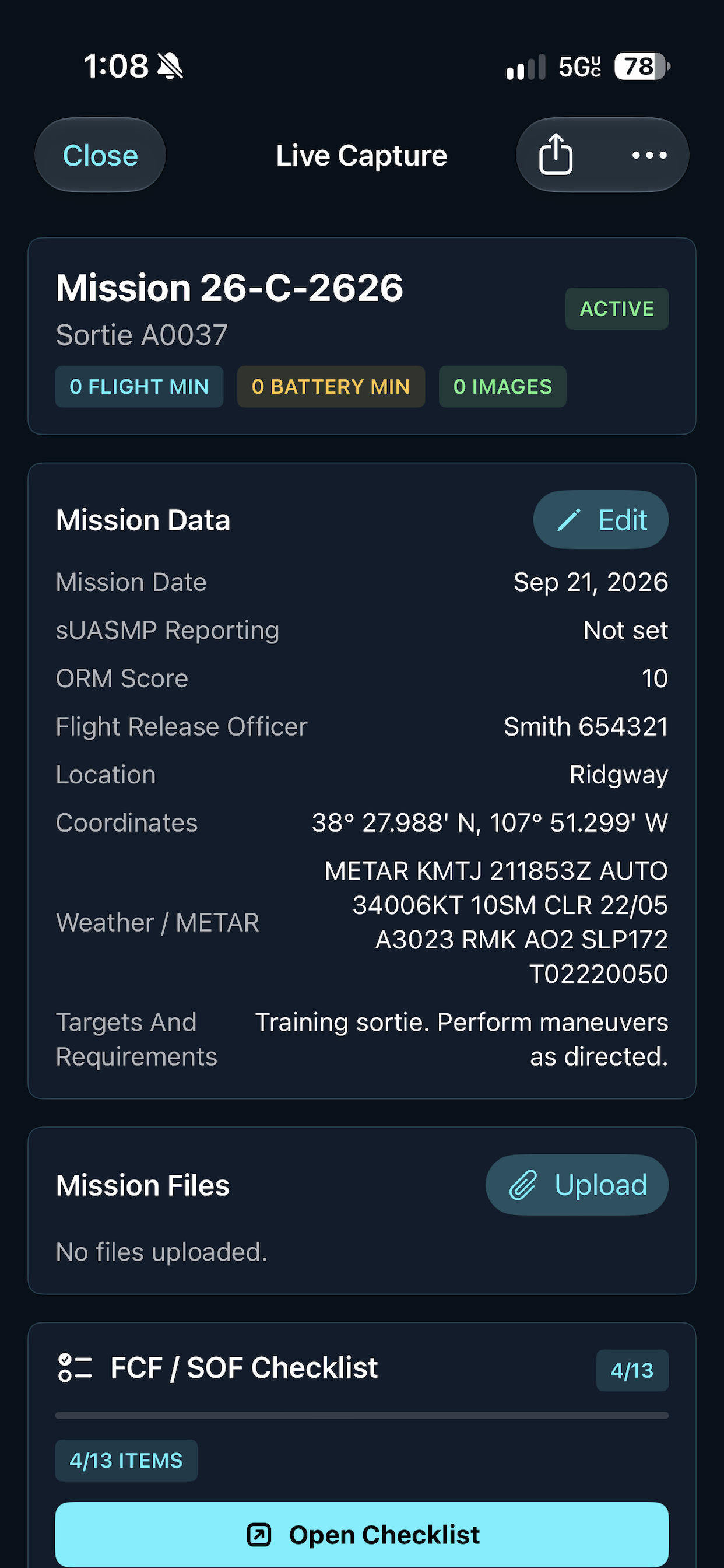
Mission and sortie identifiers: Enter the mission number and sortie number exactly as assigned.
Mission date and location: Record the operating date, launch location, and coordinates when available. Use Use Current Location to fill coordinates from the device when location access is available.
Weather: Enter weather notes manually or provide a METAR airport code and tap Fetch METAR.
Release or authorization data: Add Flight Release Officer information in the Civil Air Patrol profile, or the authorizing official in non-CAP profiles. Record the ORM score used for the sortie.
Aircraft and crew: Confirm aircraft or sUAS identifiers and the crew members supporting the sortie.
CAP reporting fields: In the Civil Air Patrol profile, complete property tag, region, wing, CAPID, CAP email address, and sortie document acknowledgement when applicable.
Objectives: Capture targets, requirements, training objectives, and general notes.
Field tip: The setup screen remembers several recent values, including mission history and previous profile defaults. If a value is not known before launch, leave it unset and return to Edit Mission after the sortie.
Live Capture
The Live Capture screen is the primary operating view during a sortie. It shows mission status, current flight and battery totals, image totals, mission data, uploaded files, checklists, 109U flight fields, flight controls, quick notes, and the sortie timeline.
Typical Capture Flow
Open the sortie and enter Live Capture.
Review mission details, files, and checklist readiness.
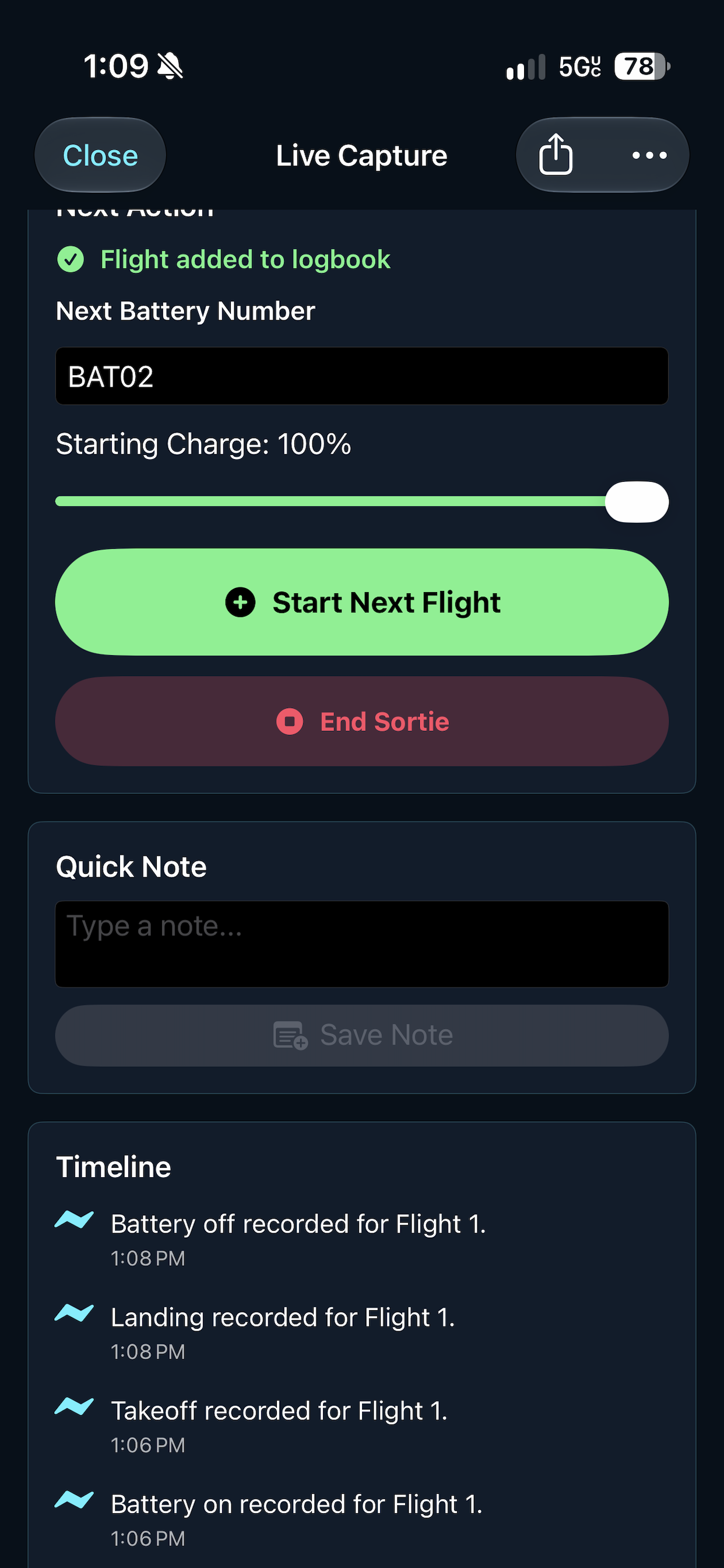
Record battery on, takeoff, landing, and battery off for each flight.
When airborne, record remaining battery percentage and image count before landing.
Use 109U Flight Fields to confirm flight date, description, crew, aircraft model, and FAA number for report and logbook output.
Add quick notes for observations, exceptions, maintenance issues, or target details.
Start the next flight with the next battery number when battery changes occur.
End the sortie after the final flight and postflight review are complete.
Multi-flight sorties: After a flight is added to the logbook, enter the next battery number, confirm starting charge, and start the next flight from the same sortie record.
Checklists
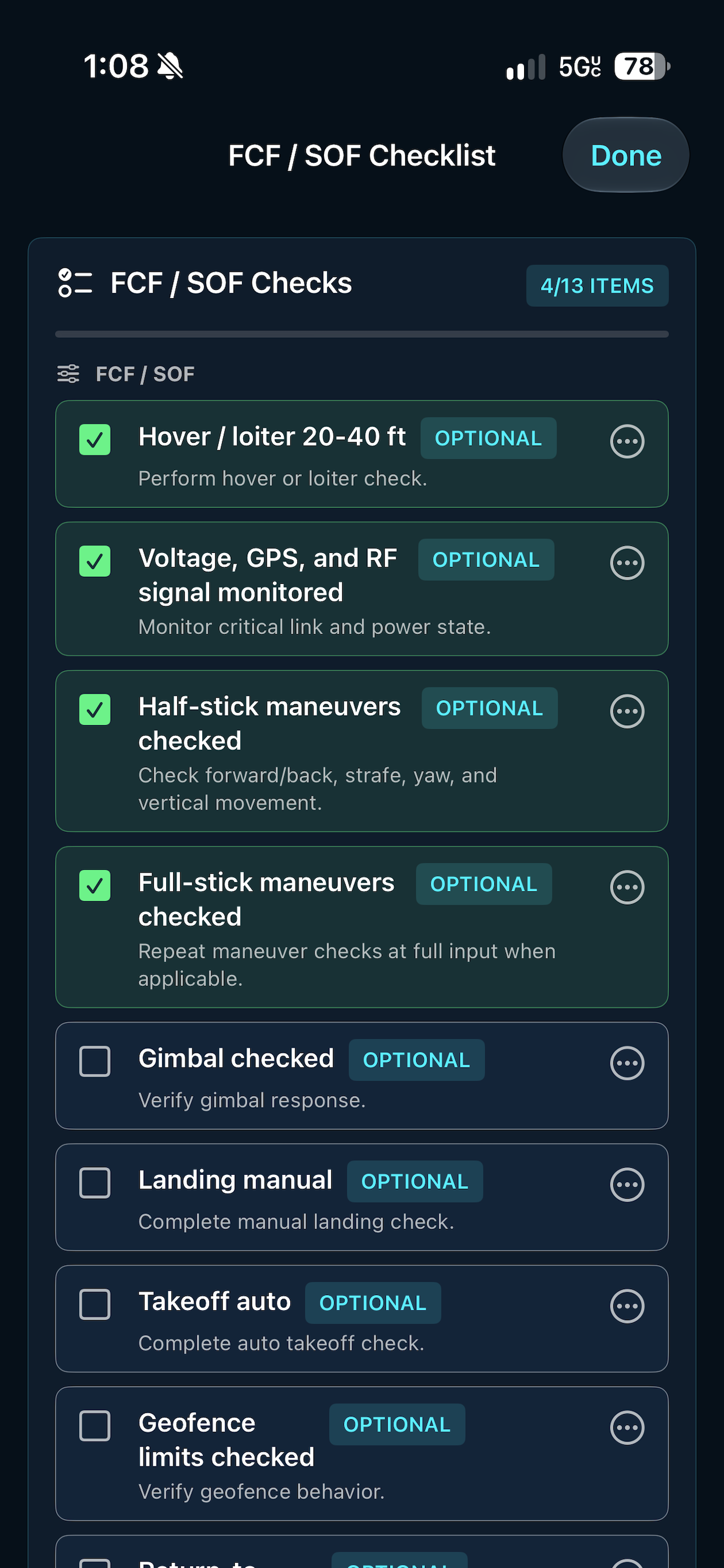
Checklist cards help crews track required and optional steps without leaving the sortie context. Progress counts show how many items have been completed and which checklist still needs attention.
Using Checklist Items
Tap Open Checklist from Live Capture.
Mark completed items as work is performed or verified.
Use item notes or overflow actions when additional detail is needed.
Return to Live Capture when checklist review is complete.
Checklist progress: Completed items are highlighted, remaining items stay visible, and optional labels help crews separate required verification from additional checks.
Battery and Flight Logging
Battery tracking is organized around flights. Each flight can have its own battery number, starting charge, and recorded battery-on through battery-off timeline. Multiple flights can remain attached to a single sortie.
Battery on: Record when the aircraft is powered and ready for the flight sequence.
Takeoff and landing: Record flight time events as they occur.
Battery off: Close the flight's battery usage interval after landing and shutdown.
Next flight: Enter the next battery identifier and starting charge before continuing.
The flight and battery minute chips at the top of Live Capture provide a quick cross-check of accumulated sortie time.
Flight Logbook
The Flight Log dashboard keeps app-captured flights and imported spreadsheet entries in one in-app logbook. Completed flights can be added from Live Capture or from the Flight Log screen after the sortie.
Logbook Actions
Add completed flights: After a flight reaches complete status, use Add to Logbook in Live Capture or add suggested completed flights from the Flight Log screen.
Import Excel logbook: Import an .xlsx Flight Log Book worksheet to seed the in-app logbook. Duplicate rows are skipped when they match existing imported data.
Share Excel logbook: Export the in-app entries to an .xlsx workbook with totals and aircraft model summaries.
Edit or delete entries: Use the row actions to correct UAS type, model, flight minutes, dates, location, coordinates, FAA number, technician, and notes.
Data note: Editing or deleting an in-app logbook entry does not change the original spreadsheet that was imported.
Operational Risk Management
The ORM dashboard helps crews score risk factors before launch. Select an existing sortie to fill mission details, or enter the details manually. As each factor is selected, the app updates the total score, risk label, and any no-go factor status.
Using ORM
Open ORM from the home dashboard.
Select a sortie or enter mission, sortie, pilot, approver, and date details manually.
Review Team, Machine, Environment, and Mission factors and select the appropriate score for each one.
Add approval notes when needed.
In the Civil Air Patrol profile, preview the ORM PDF. Low-risk CAP assessments can include a signature captured with a finger or Apple Pencil.
Reports and Sharing
Use the share menu on Live Capture and the dashboard action menus to generate sortie outputs. Review exported data before submitting it into any official mission system, logbook, approval, or form workflow.
Available Outputs
Summary Report: A concise report of sortie data, flight activity, battery usage, notes, and supporting details.
CAPF 109U: A structured export focused on CAPF 109U imagery target reporting support, available in the Civil Air Patrol profile.
CAP Microsoft Form assistant: In the Civil Air Patrol profile, open Complete CAP Form to load the Microsoft Form, prefill captured fields where possible, review missing or manual-review fields, and mark the form submitted after you submit it yourself.
Flight Logbook workbook: Share an Excel logbook from the Flight Log dashboard.
ORM PDF: Preview and share a CAP-oriented ORM PDF from the ORM dashboard when using the Civil Air Patrol profile.
Files and images: Upload supporting mission files or imagery to keep them associated with the sortie record.
Before submission: Treat app-generated exports as working documentation. Verify mission number, sortie number, crew, aircraft, times, targets, and notes before final official submission.
Troubleshooting
Checklist Progress Looks Wrong
Open the checklist and confirm each item state. If the sortie was edited on another device or after an app update, review checklist sections before relying on the count badges.
A Flight Was Logged With the Wrong Battery
Review the flight log and correct the battery number or charge values before exporting reports. For multi-flight sorties, confirm the next battery number before tapping Start Next Flight.
Report Data Is Incomplete
Return to mission data and fill any missing sortie, crew, aircraft, target, or note fields. Regenerate the Summary Report or CAPF 109U export after the missing data is saved.
CAP Form Fields Need Review
The Microsoft Form assistant fills what it can detect in the form. Review highlighted missing or manual-review fields before pressing Submit in Microsoft Forms, then use Mark Submitted in sUAS OPS to update the sortie status.
Imported Logbook Entries Look Duplicated or Missing
Confirm the workbook contains a readable Flight Log Book worksheet. sUAS OPS skips rows that match an existing import signature, so review in-app entries before reimporting a revised spreadsheet.
Feedback
Use the ezaero contact options to report bugs, confusing labels, missing fields, or workflow issues found during field use.