Installation
System Requirements
Before installing SortieTrack, ensure your device meets the following requirements:
- iOS 18.0 or later
- iPhone 12 or later recommended
- iPad (6th generation or later)
- Active internet connection for adding, briefings, and debriefing sorties
- Location services enabled
Install from the App Store
1Open the SortieTrack App Store listing on your iPhone or iPad.
2Download SortieTrack and open it after installation completes.
3Start using the full SortieTrack workflow right away. All former Premium features are included for free.
Initial Setup
Settings
When first launching SortieTrack, a sample sortie may appear. To remove it, swipe left on the sortie and tap "Delete."
Before importing your first sortie, complete the required setup items: save your CAP e-Services credentials and add at least one Flight Release Officer (FRO).
1Tap the Settings (gear) icon in the upper-left corner.
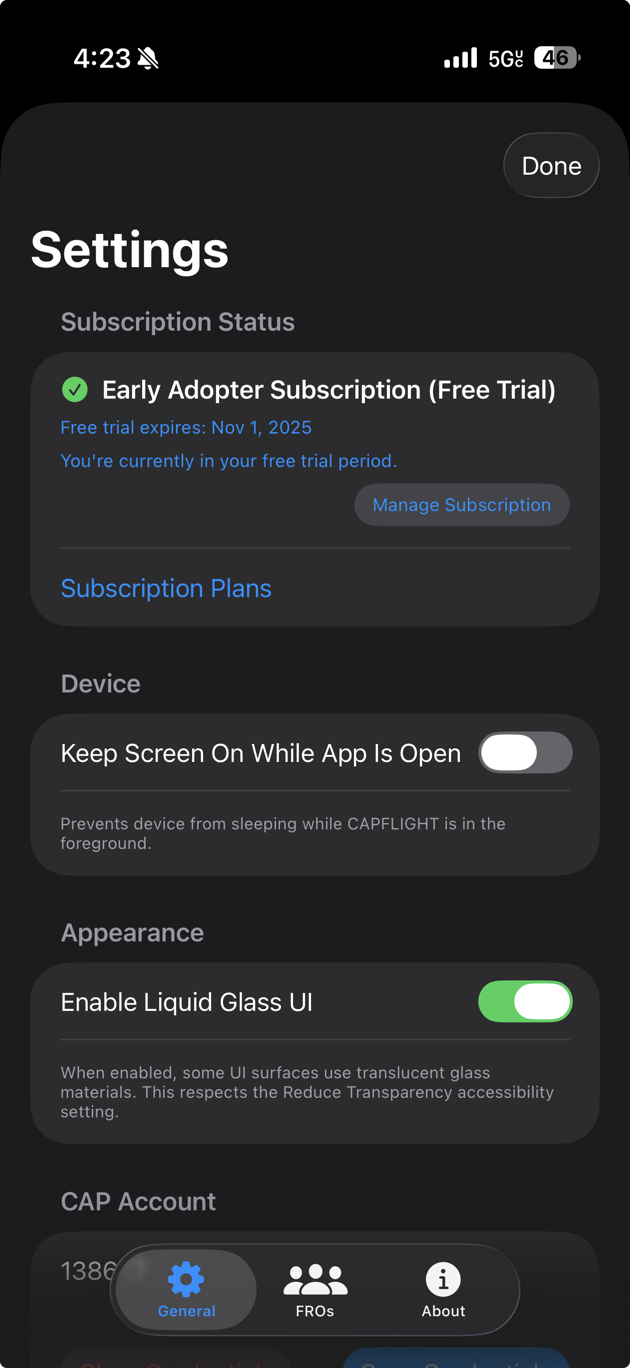
Settings view — tap the gear to open app preferences, CAP account credentials, and FRO settings.
Feature access
SortieTrack includes all former Premium features for free, so there are no subscription plans or trial timers to manage.
CAP Account / e-Services Login
Enter your CAP ID and e-Services password in the CAP Account section, then tap Save Credentials. SortieTrack stores these credentials securely in the iOS Keychain and uses them for automatic WMIRS sign-in when adding, briefing, or debriefing sorties.
If your e-Services password changes, update it in SortieTrack Settings before importing or updating sorties.
iCloud Sync
iCloud Sync keeps data synchronized across your iOS devices so the latest information is available on any device. Ensure iCloud is enabled for SortieTrack in iOS Settings.
Defaults
Defaults populate initial sortie fields when your mission management system does not provide them. Configure preferred aircraft, home base, and common notes here.
Flight Release Officers (FROs)
Use the FROs tab and the '+' button to add at least one Flight Release Officer before your first sortie. Include the FRO's first name, last name, CAPID, and phone number when available.
SortieTrack uses the FRO information extracted from the sortie to match a saved FRO contact, show release details, and optionally prepare engine start and engine stop SMS messages when the device supports texting.
FIRST SORTIE
Prerequisites: sortie information must exist in your mission management system before importing. You must also have your CAP ID/e-Services password saved in SortieTrack and at least one FRO configured in Settings.
Complete required setup if prompted
If this is your first time adding an existing sortie, SortieTrack checks for saved CAP account credentials and at least one FRO. If either item is missing, complete the Required Setup screen before continuing.
Tap "Add New Sortie"
The app authenticates to the mission system using your saved CAP ID and e-Services password. If your login fails, re-enter your current credentials in Settings.
Select "Air" sorties
In your mission management system, choose the "Air" sorties associated with the mission you will fly.
Open and edit the sortie
Locate the sortie and tap "Edit." The Air Sortie page indicates when mission management system data has been acquired. Modify fields as necessary, confirm the correct FRO or flight release information is present for the sortie, and tap "Update" to save changes. Return to the main view by tapping Home.
Important: The sortie will not load properly in the app without editing the sortie in your mission management system first.
BRIEFING
Tap "Brief"
The app navigates to the briefing page in your mission management system for the selected sortie. Mission data will be displayed; you may make edits which will be synchronized back to the app. When finished, return to the main view by tapping Home.
FLY
From the phase menu, tap Fly to open the flight interface. The Fly view contains four tabs:
Preflight
Enter start times for both Hobbs and tachometer counters.
Flight Log
The Flight Log shows your current GPS position and altitude and provides controls for standard flight events. Use "Custom Log Entry" for freeform notes. Flight Log History updates in real time as events are logged.
Engine Start/Stop may prompt an SMS to the configured designated contact if the device supports messaging. Wheels Up and Wheels Down events are logged automatically once indicated airspeed exceeds 40 kt and 30 kt, respectively.
When the flight is complete, tap Export to generate the Postflight Summary.
POSTFLIGHT
Flight Times
Flight times are populated using the recorded engine start and stop times.
Mission Results
The Postflight Summary can include the flight log and is editable via "Edit." Enter Results/Deliverables and Remarks as required. Use the weather builder ("Select") to populate weather conditions.
Export Flight Time Log
Enter engine times and fuel/oil information where available, then generate the Flight Time Log PDF from Reports. The PDF may be exported to other locations as needed.
Summary view
On the main screen, review the sortie summary. Tap the sortie to access the phase menu.
Debrief
Debrief
Tap "Debrief" to open the debrief page for the selected sortie. If the mission system does not already contain postflight data, the app will populate it with the postflight information.
Fuel receipt handling
When adding a fuel receipt, indicate whether it covers multiple sorties. For multiple sorties, enter the related sortie numbers and the total Hobbs time. For a single sortie, the receipt will be associated with that sortie.
Capture a photo of the fuel receipt; the image is saved to the device Photos app. To upload the receipt to your mission system, select "Choose File" on the upload page, choose Photo, and select the saved receipt image.
Common Issues and Solutions
Mission System Connection Issues
Problem: "Unable to connect to mission system" error message
Solutions:
- Verify your mission-system username and password are correct
- Check that you have an active internet connection
- Ensure the mission system is not under maintenance (check your organization's announcements)
- Try logging out and back into the mission system through a web browser first
GPS Tracking Problems
Problem: GPS location is inaccurate or not updating
Solutions:
- Ensure Location Services are enabled for SortieTrack
- Set location permission to "Always" rather than "While Using App"
- Keep your device away from metal aircraft structures when possible
- Wait for GPS acquisition before starting flight operations
Sync Issues
Problem: Data not syncing between devices
Solutions:
- Check that iCloud is enabled for SortieTrack
- Ensure both devices are signed into the same iCloud account
- Force sync by pulling down on the main screen
- Check available iCloud storage space
Getting Additional Help
If you're still experiencing issues:
- Check the in-app Help section for additional troubleshooting steps
- Contact support at support@ezaero.com with your device model and iOS version
- Include screenshots of any error messages
- Describe the specific steps that lead to the problem
Next Steps
Now that you're set up with SortieTrack, explore these additional resources:
- Advanced Sortie Management - Learn about complex mission workflows
- Mission-system Integration Deep Dive - Advanced integration features
- Quick Start Videos - Visual tutorials and walkthroughs
- Complete Troubleshooting Guide - Solutions to common issues